Edit Task
Written By Rico van der Stelt
1. Edit Task
Go to Tasks.
Click on the task you want to edit.
Click Edit.
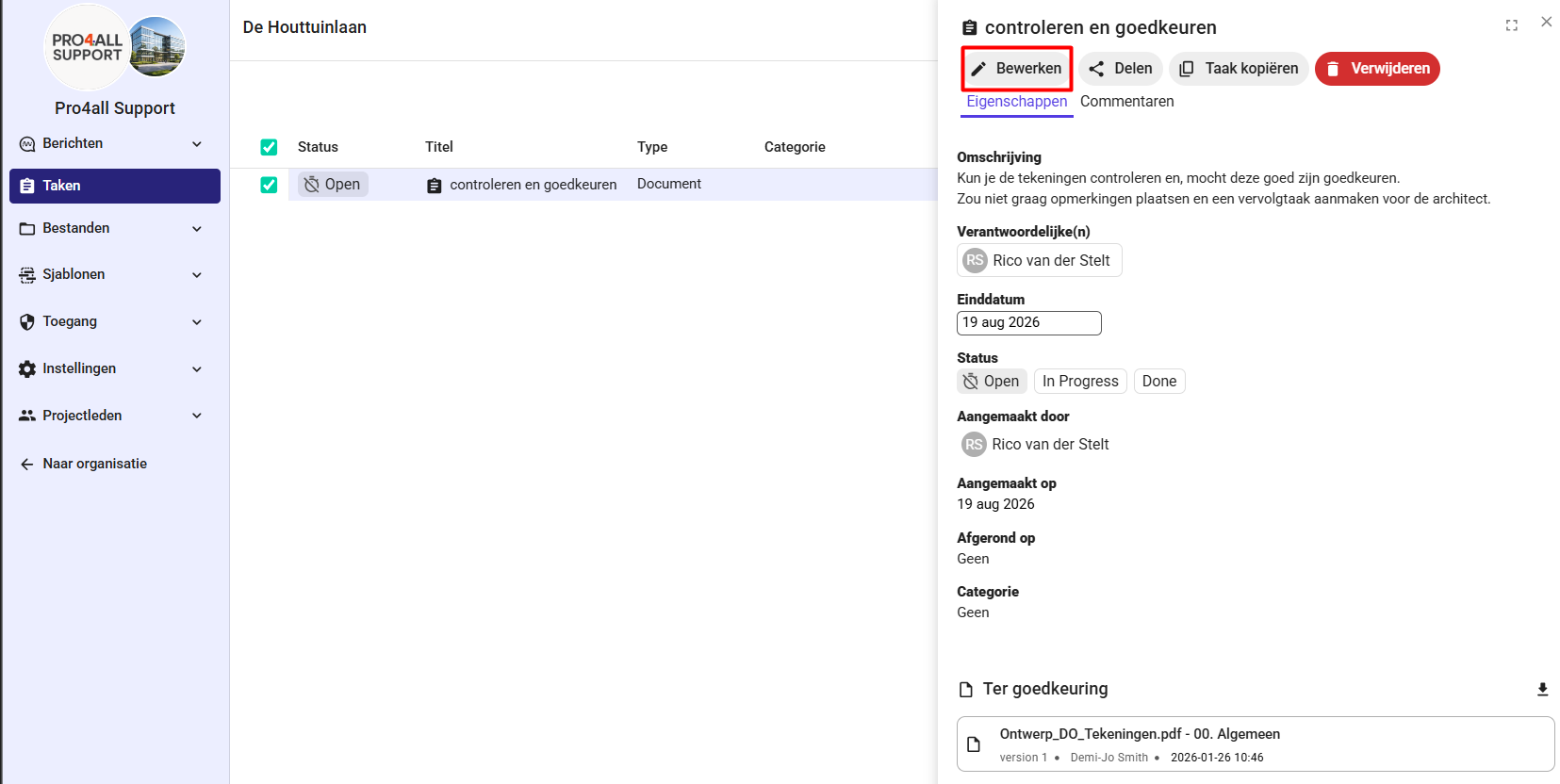
Update the desired information.
Click Save and Close.
2. Adding Documents to a Task
After creating a task, you can add or remove documents.
Open the task.
Click Edit
Click Add Document.
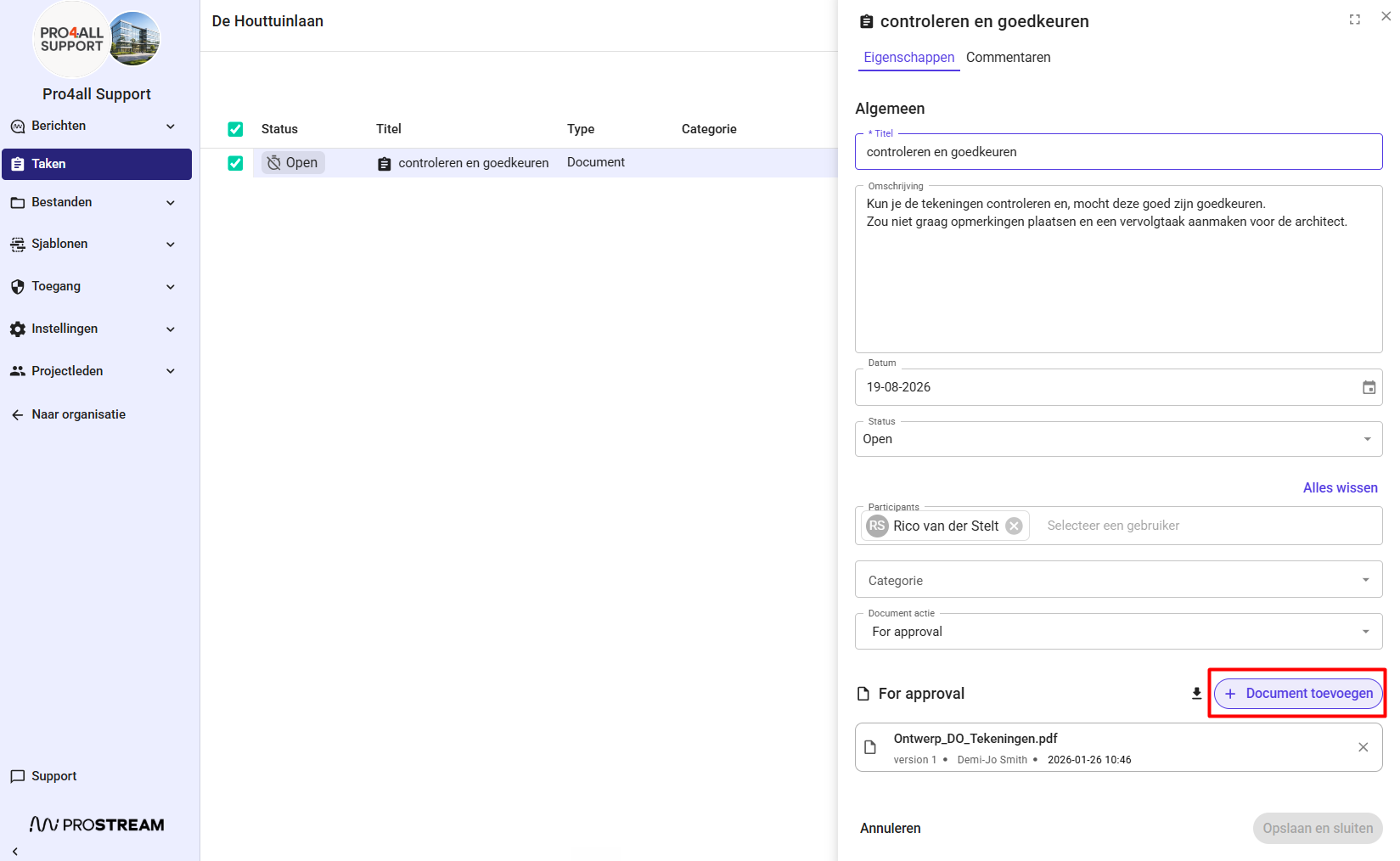
Browse the folder structure on the left to find the desired folder.
Select the documents on the right that you want to add.
Click Add.
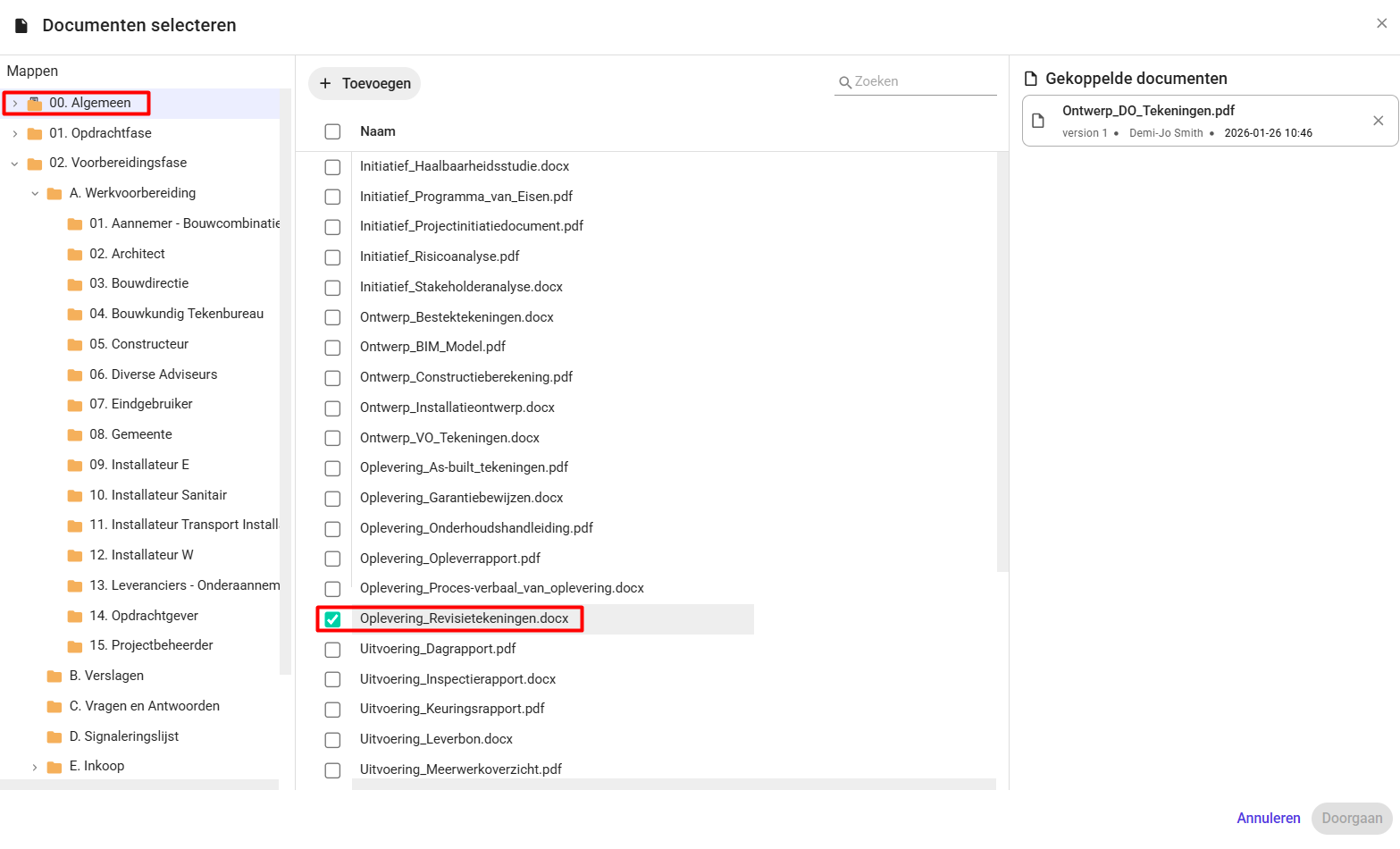
💡 Tip: The window stays open so you can browse through multiple folders and keep adding documents. Documents that are already linked to the task will no longer appear in the selection.
3. Removing Documents from a Task
Open the task.
Click Edit
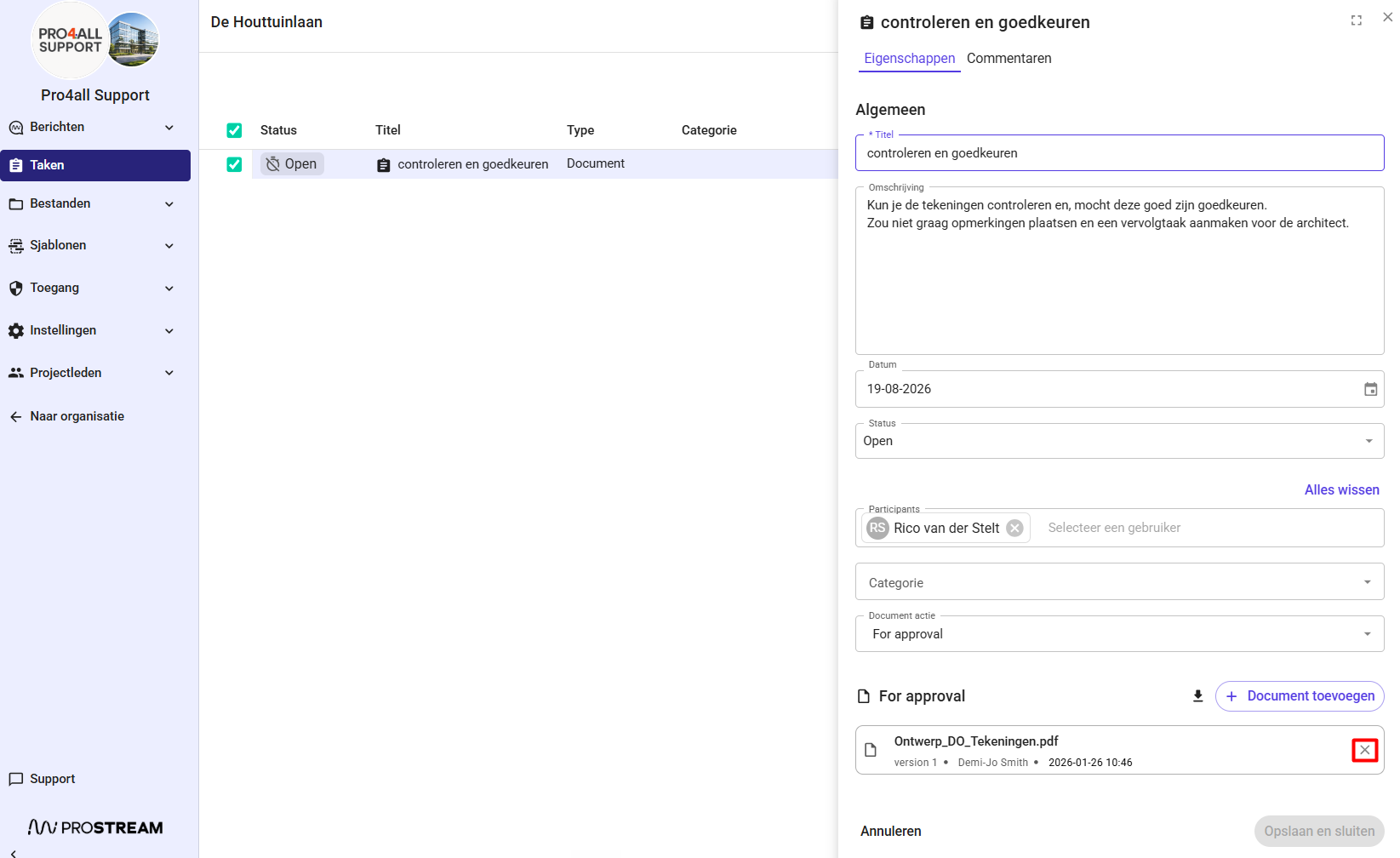
Remove the document from the document list in the task.
💡 Tip: The document itself remains in Prostream. Only the link to the task is removed.
Was this helpful?
Still need help? Ask the team