Overview of Shared Links
In Prostream, you can manage shared links at both the organizational and project levels.
Written By Rico van der Stelt
1. Organization Links
As an organization administrator, you can see at a glance which links have been shared from your organization’s folders.
⚠️ Note: Links from project folders are not included here. You manage those within the project itself.
View links
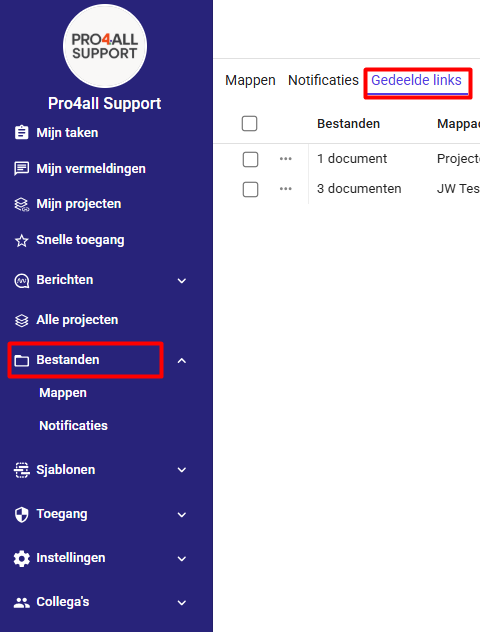
Go to Files.
Click Shared Links.
Extend links
Select the expired links.
Click Extend.
Choose a new expiration date.
Reuse a link
Select one link from the list.
Select “Reuse.”
Set new settings for the shared link.
You’ll share the same documents again with the new settings.
Revoke links
Select one or more active links from the list.
Click "Revoke."
2. Project links
You manage shared links from project folders within the project itself.
View links
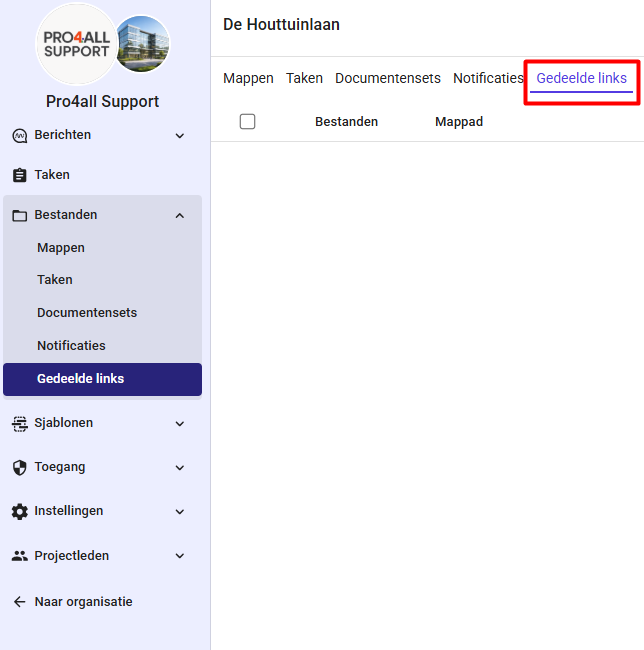
Go to Files.
Click Shared Links.
Extend links
Select the expired links.
Click Extend.
Choose a new expiration date.
Reuse a link
Select one link from the list.
Select "Reuse."
Set new settings for the shared link.
You’ll share the same documents again with the new settings.
Revoke links
Select one or more active links from the list.
Click "Revoke."
Was this helpful?
Still need help? Ask the team