Version Control
In this article, you'll learn more about version control in Prostream
Written By Rico van der Stelt
Prostream Automatically saves all versions of a file.
In the document overview, you can see the current version number.
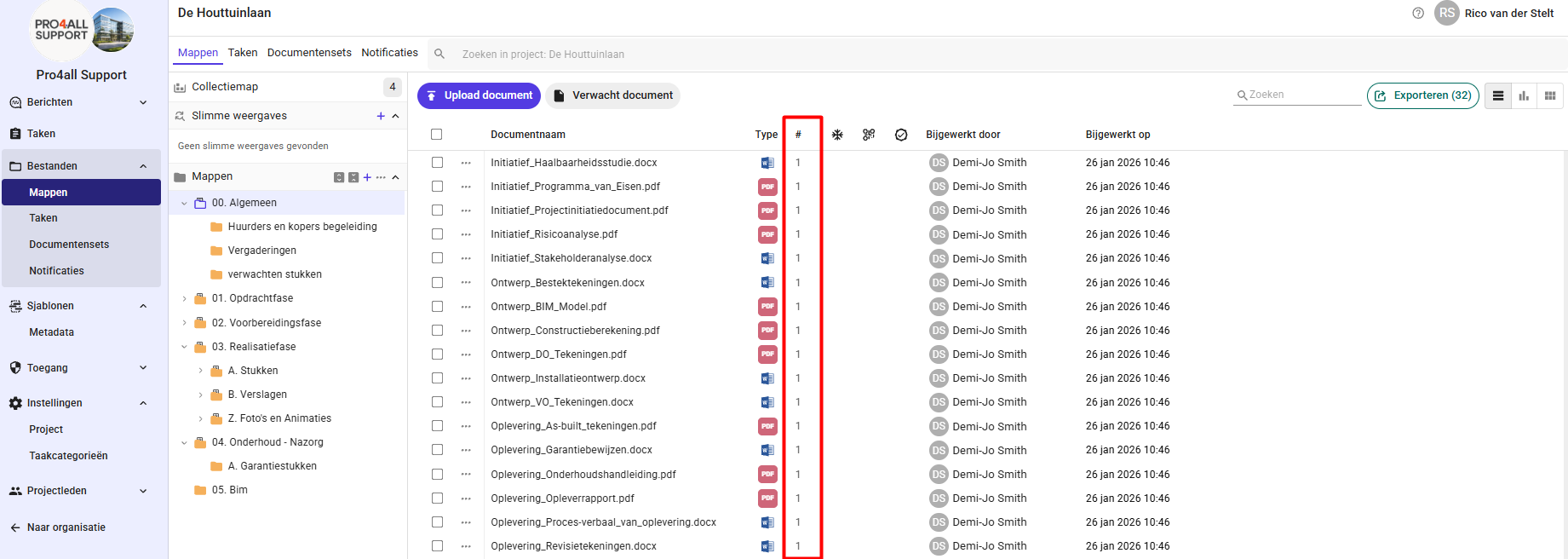
Under version control, you can view all versions of the selected document.
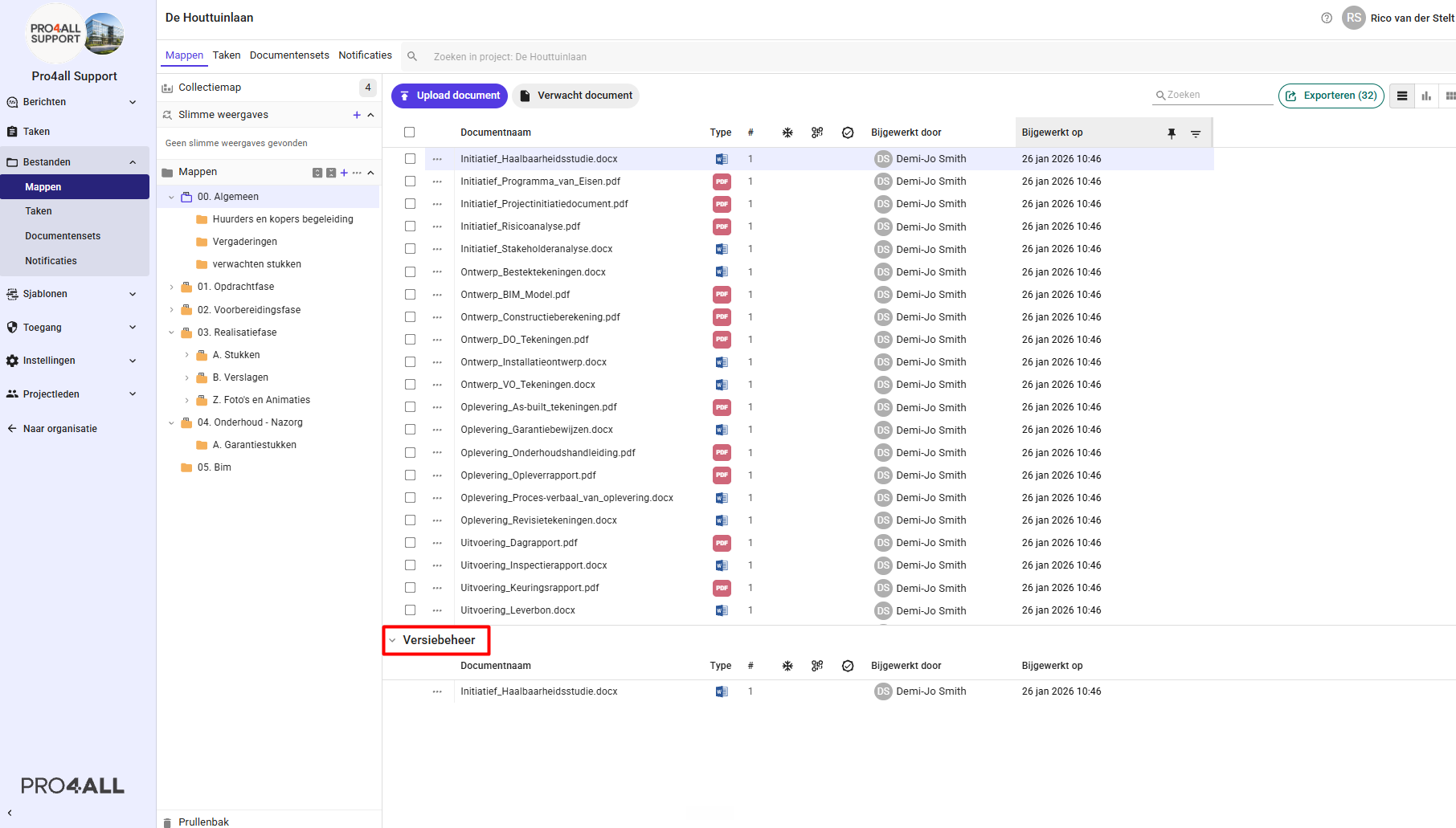
💡 Tip: Only one screen can be open at a time: either the document screen or version management.
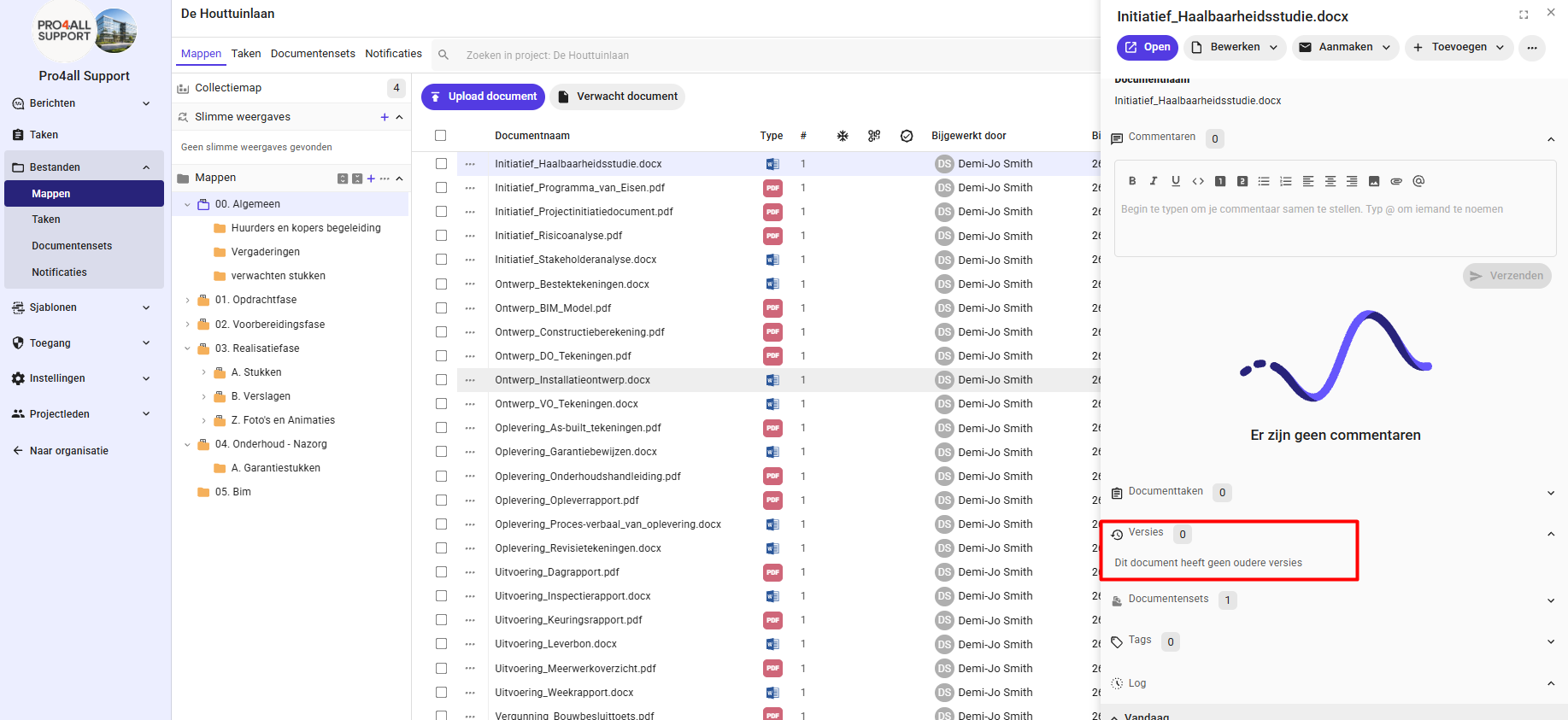
You can also view the different versions in the document screen.
1. Upload a new version
Right-click on a file and select Upload New Version.
Or click the three dots and select Upload Version.
Or drag a new file into version control.

2. Approve, Reject, or Freeze a Version
To clearly see which version is final, you can review a version by approving, rejecting, or finalizing it. This also allows you to determine whether someone can view only the final or approved versions, without access to older versions.
Select the file or a version of a file.
Click the three dots.
Select one of the following options:
✅ Approve
🚫 Reject
❄️ Mark as Final
💡 Tip: You can customize the names for "Approve," "Reject," and "Finalize" in your organization's settings.