Pinning and Dragging Metadata Fields
In Prostream, you can customize the order of the metadata to suit your preferences. You can drag and drop columns or pin them so they always remain visible.
Written By Rico van der Stelt
1. Setting Pins or Dragging
⚠️ Note: Pins and dragging do not work at the same time. Pins are enabled by default.
Click on your name in the top-right corner.
Click on My Profile.
Go to Settings.
Choose whether you want to pin columns by enabling “Pin columns.”
If you want to drag and drop columns, turn this option off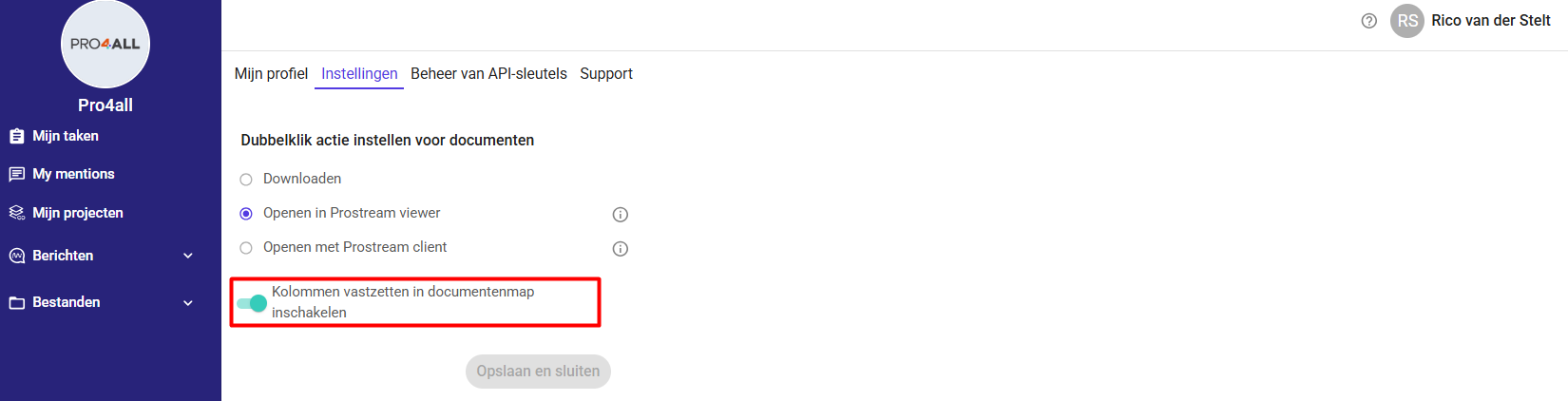
2. Dragging Columns
Go to the folder where you want to change the order
Drag columns within the folder to the desired order.
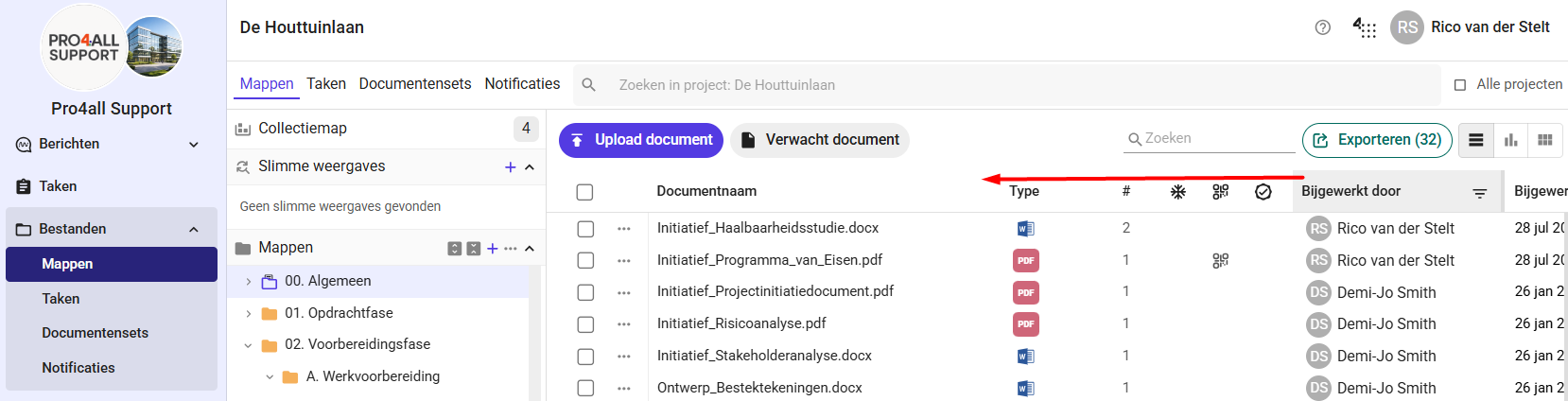
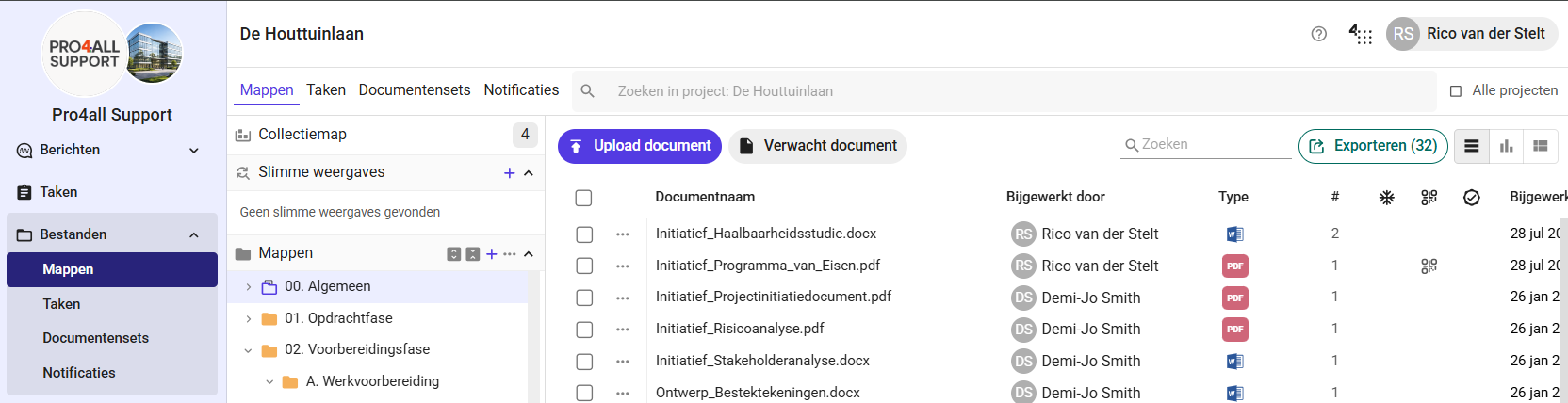
💡 Tip: The order is saved per folder, even after refreshing the page.
3. Pin columns
Pin important columns, such as the document name, so they remain visible at all times while scrolling horizontally. This helps you keep track of things when filling out metadata.
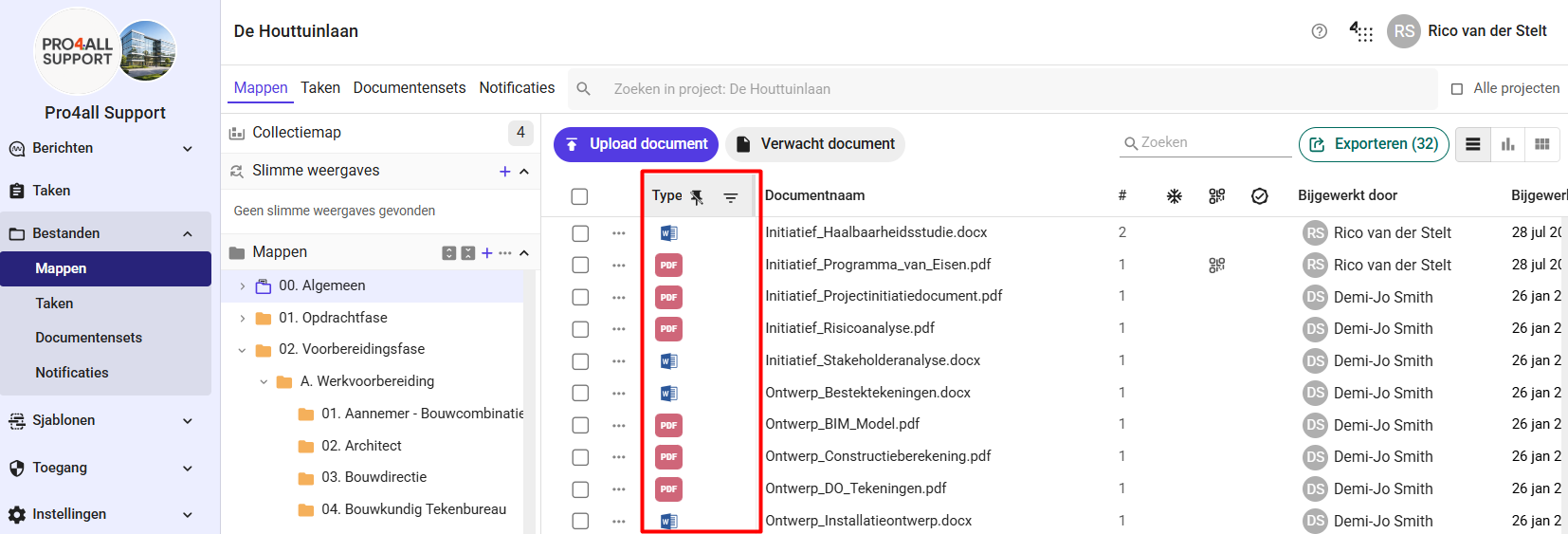
Go to the folder where you want to pin the metadata.
Click the pin icon in the column.
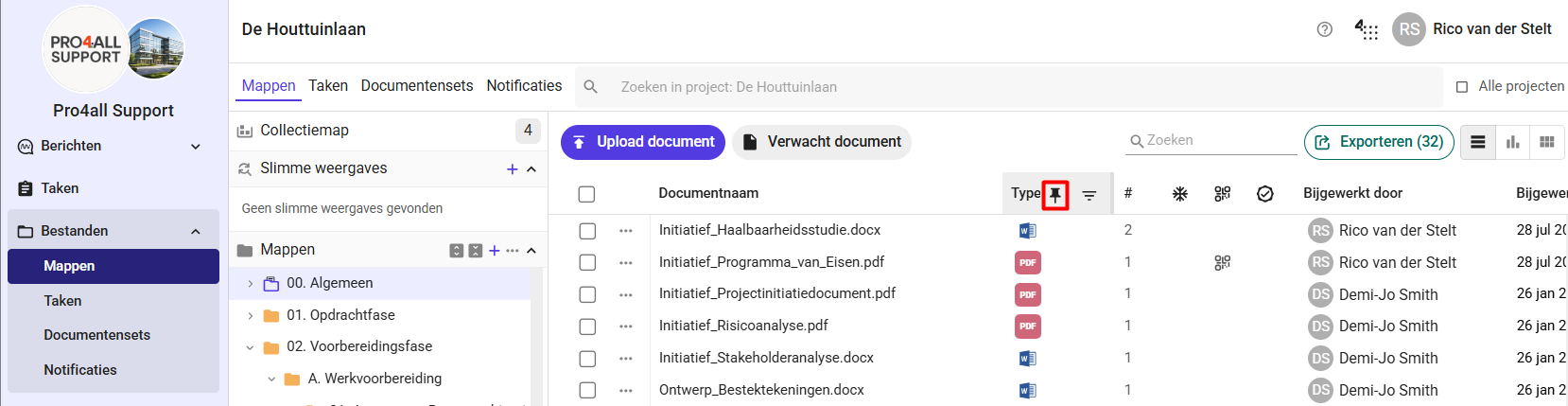
The column has been moved to the left and is now always visible.
Was this helpful?
Still need help? Ask the team