File: Side Panel
In the side panel, you'll see all the information about the selected document.
Written By Rico van der Stelt
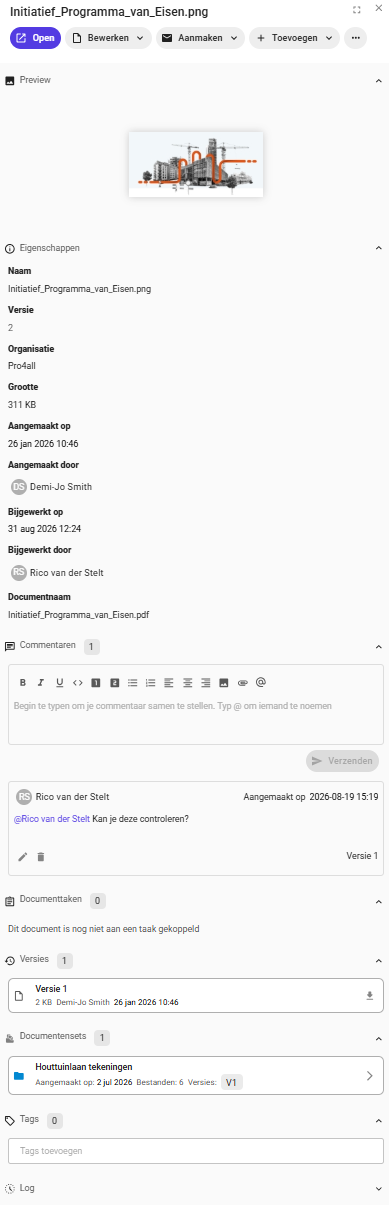
1. Preview
View a preview of the file without opening it. Click on the preview to view it in full size.
💡 Tip: If the file is a PDF and you click on the preview, the file will open in Apryse.
2. Properties
You can find all the basic information about the file under Properties, such as:
Name
Version
Organization
Size
Creation Date
Who created the file
When it was updated
Who updated the file
3. Comments
Use the Comments feature to post comments and tag colleagues by typing @colleaguname in the comment field. You can also add attachments to your comment.
Did you tag a colleague? That colleague will receive a notification. They can also find this under “My Mentions.”
📖 Want to learn more about mentions? Check out the article: "My listings"
4. Document Tasks
You’ll find an overview of all tasks linked to this document under Document Tasks.
📖 Want to learn more about tasks? Click here
5. Versions
All previous versions of this document can be found under Versions.
6. Document Sets
Want to know which document sets this document is part of? You can find that under Document Sets.
7. Tags
Use “Tags” to add a tag to the document. This tag can be found in the “Tags” metadata field.
8. Log
All actions performed on this document can be found in the Log. For each action, you’ll see:
Who performed the action.
Whether this user is an administrator.
What action was performed.
When the action was performed.
💡 Tip: Click on an action for more information about exactly what was changed.
Was this helpful?
Still need help? Ask the team