Search for Files
With Prostream's search function, you can quickly find files—whether within your organization, within a specific project, or across all projects.
Written By Rico van der Stelt
1. Search at the organizational level
Are you searching at the organizational level? If so, you can choose whether to search within organizational documents or across all projects.
⚠️ Note: A selection must be active in order to search within the organization.
Go to the organization-level search bar.
Use the checkboxes next to the search bar to select:
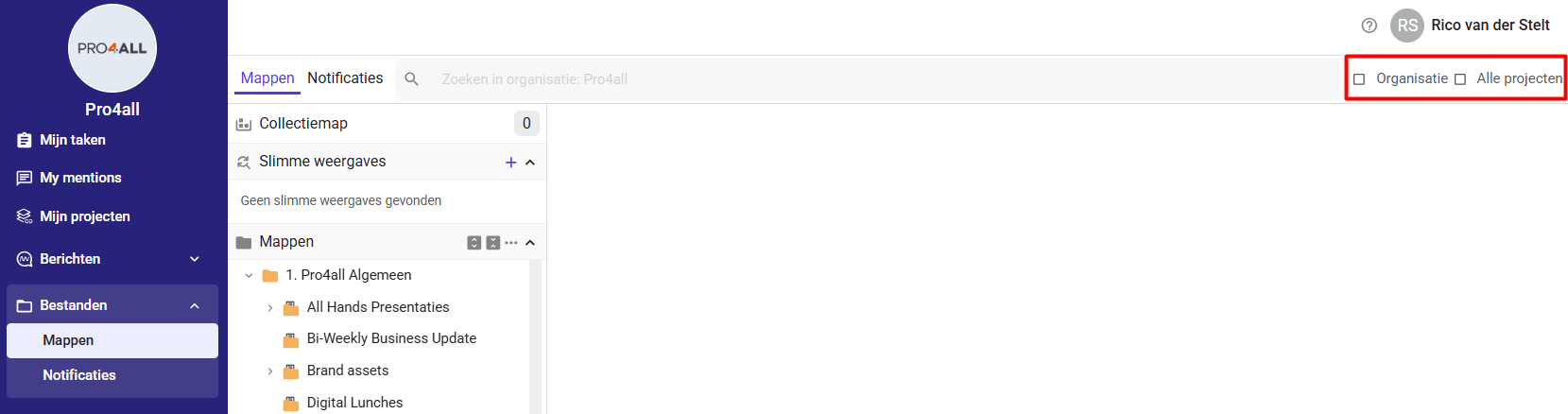
Organization — search within organizational documents.
All projects — search within all projects.
Enter your search term.
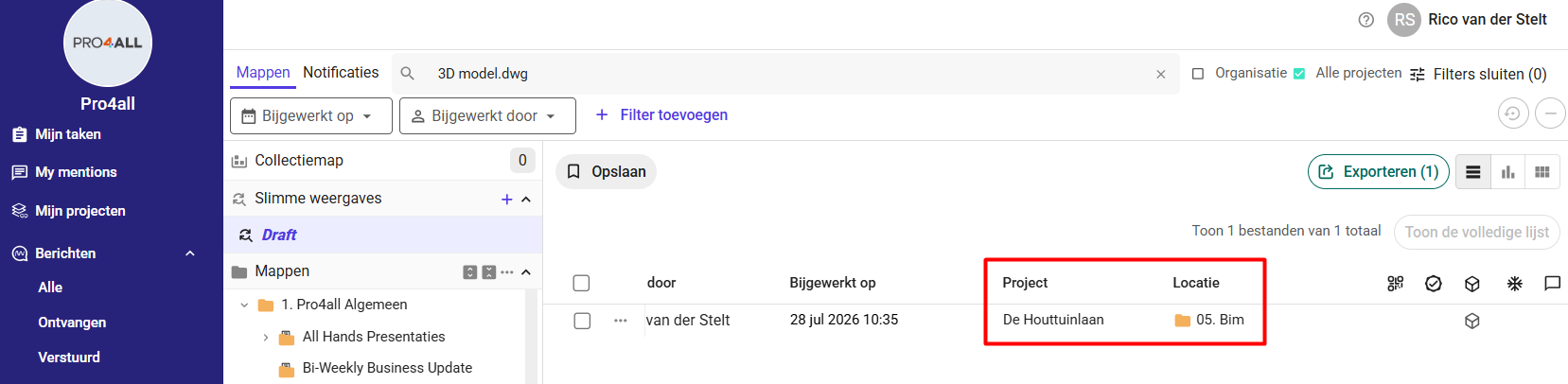
In the search results, you’ll see a “Project” column, so you can immediately see which project a document comes from.
In the search results, you’ll see a “Location” column, so you can immediately see which folder a document comes from.
💡 Tip: Click the folder name to go directly to the document’s location.
💡 Tip: Your preference will be saved for future searches.
2. Searching from a project
Do you mainly work within a project? If so, you can also search across all projects from there.
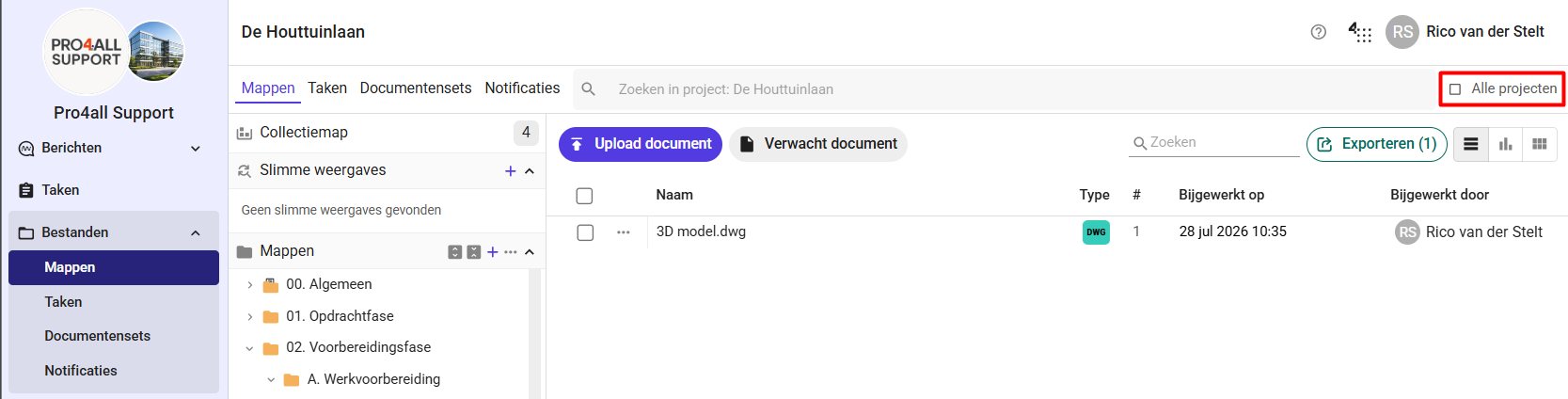
Go to the search bar in the project.
Check the “All projects” box next to the search bar.
Enter your search term.
You’ll be automatically redirected to the organization environment with your search term and the correct search settings already configured.
Was this helpful?
Still need help? Ask the team