Quick Access (Favorite Folders)
Do you work on multiple projects and find yourself constantly looking for the same folders? Add them to Quick Access to access them instantly—even across projects.
Written By Rico van der Stelt
1. Add a Folder to Quick Access
Right-click a folder in the folder tree.
Select "Add to Quick Access."
You can add folders from a project or from your organization’s documents.
2. Using Quick Access
You can find your favorite folders in two places:
At the organization level — “Quick Access” is located in the left-hand menu, under My Projects. Here you’ll see all your favorite folders from your organization and all your projects, listed by project name.
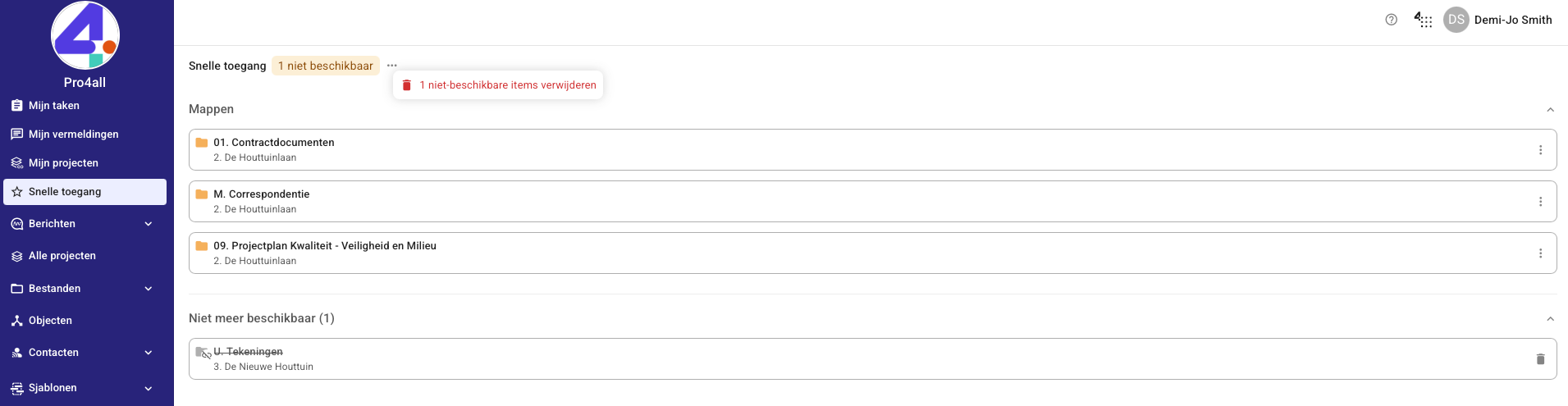
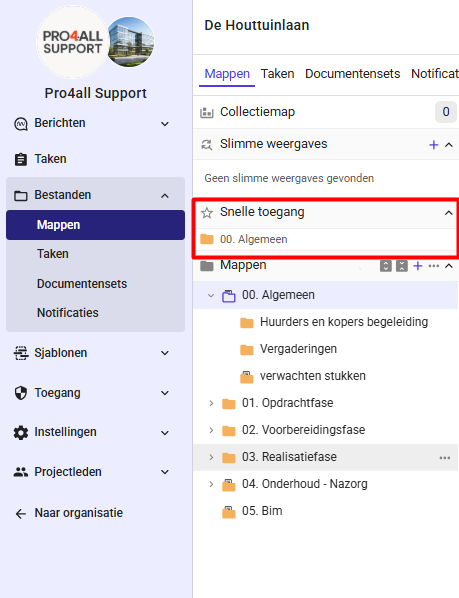
Within a project — in the Files sidebar, you’ll see only the favorite folders for that project.
💡 Tip: Rearrange the order by dragging folders. There’s no limit to the number of favorites. Prostream saves your favorites to your account, so they’re available on any device.
3. Remove a folder from Quick Access
Go to Quick Access.
Click the three dots next to the folder.
Select Delete.
4. Clean up unavailable folders
Is a folder no longer available? If so, it will remain visible in Quick Access, grayed out and struck through. It’s up to you whether you want to delete it.
Want to delete all unavailable folders at once?
Click the three dots in Quick Access.
Select "Remove Unavailable Items."
Was this helpful?
Still need help? Ask the team