Filter Files
Filters allow you to search for specific files based on metadata. Read more here about how to set up these filters.
Written By Rico van der Stelt
1. Filtering Files
Filters let you search for specific files based on metadata, such as status, date, or file type. This helps you quickly find the right documents without having to scroll through the entire list.
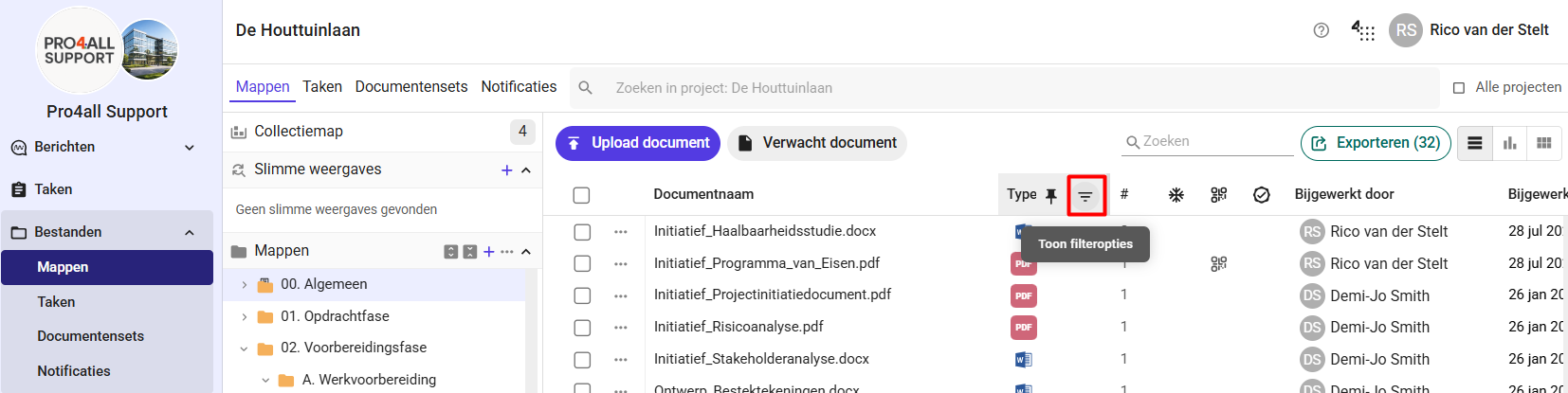
Go to your files.
Go to the metadata column you want to filter by.
Click Show filter options.
Select or enter the desired value(s).
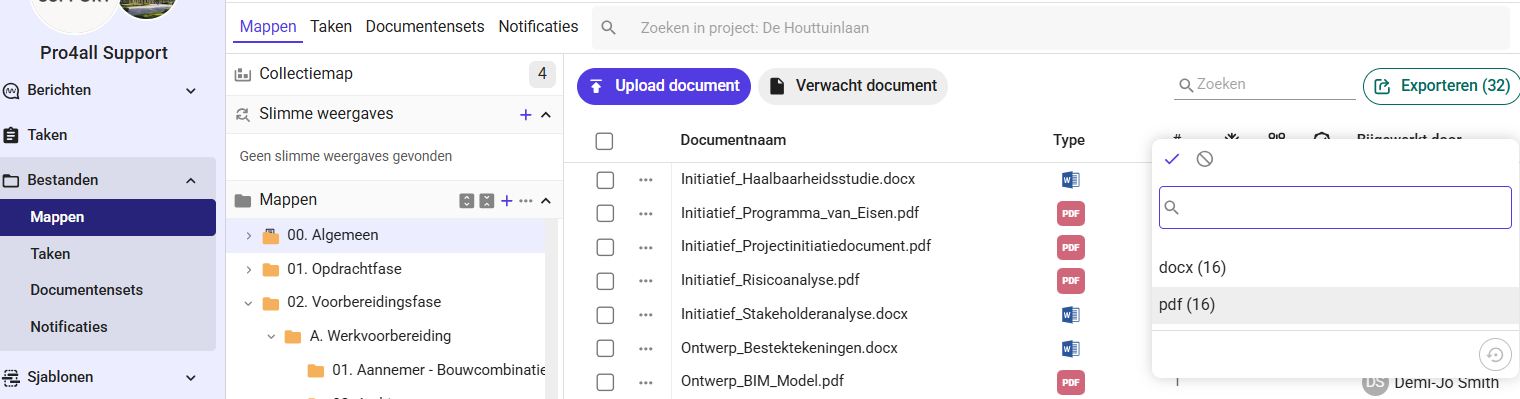
💡 Tip: You can apply multiple filters at once to further refine your search.
2. Filter by Exclusion
Are you working with a dropdown menu that has many options? Then you don’t have to check all the values you do want to see. You can also directly exclude what you don’t want to see.
Go to your files.
Go to the metadata column you want to filter by.
Click Show filter options.
Set the filter to “Exclude.”
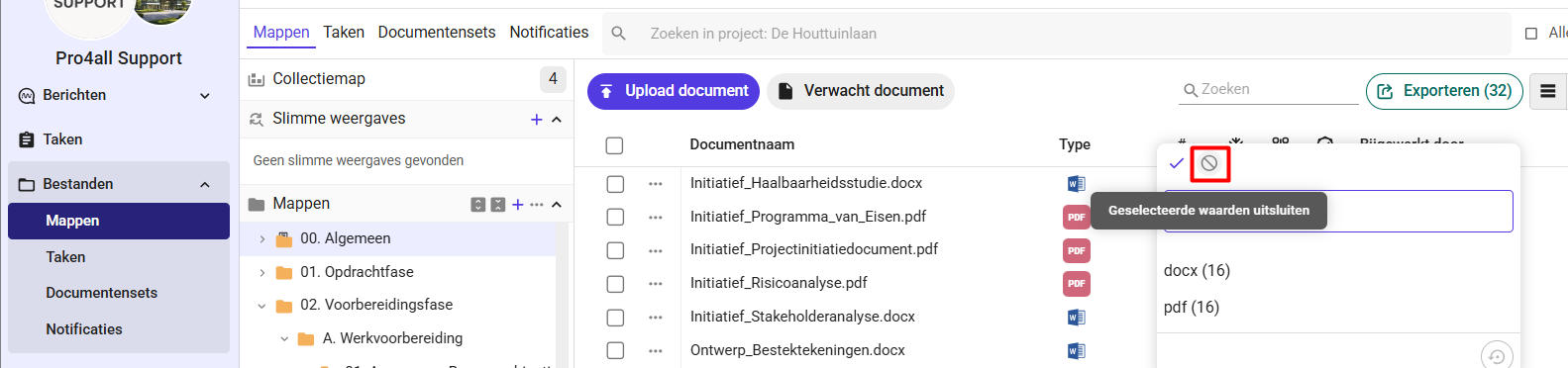
Select the value(s) you don’t want to see.
3. Switch between searching by text and selecting from unique values
In your metadata column, you can choose between searching by text or selecting from a list of all the values you’ve entered in this column.
Go to your files.
Go to the metadata column you want to filter by.
Click Show filter options.
Switch the filter to “Unique Values.”
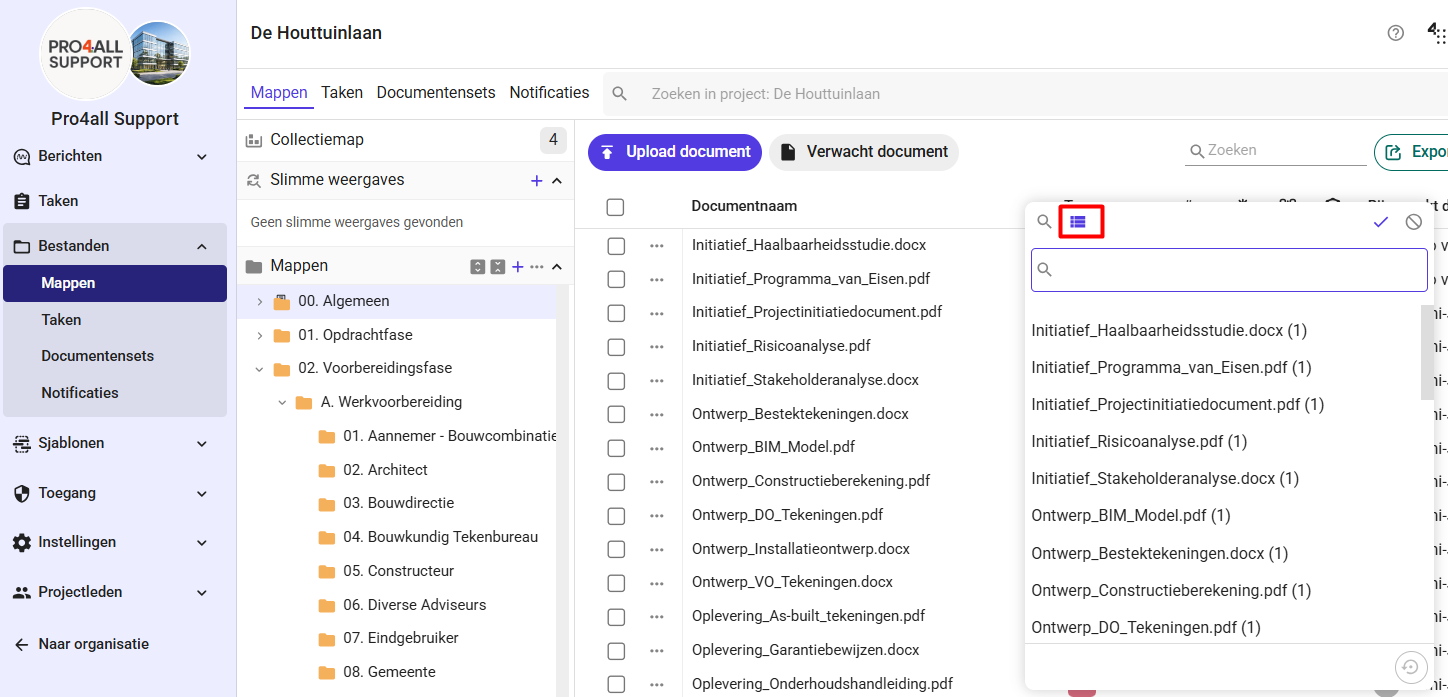
Select the desired value(s).
💡 Tip: Switch back to "Search by Text" to filter by your own search terms again.
Was this helpful?
Still need help? Ask the team