STA
To share drawings and photos (PDF, JPEG, and PNG files) with STA, the organization must be connected to STA once. This can only be done by an administrator. Once linked, Prostream uploads the selected files to the STA environment. If a file already exists in STA, you can choose to overwrite it. No other data is exchanged between STA and Prostream.
Written By Rico van der Stelt
⚠️ Please note: To connect to STA, you must have API permissions in STA and not be using two-step verification.
1. Link your organization to STA
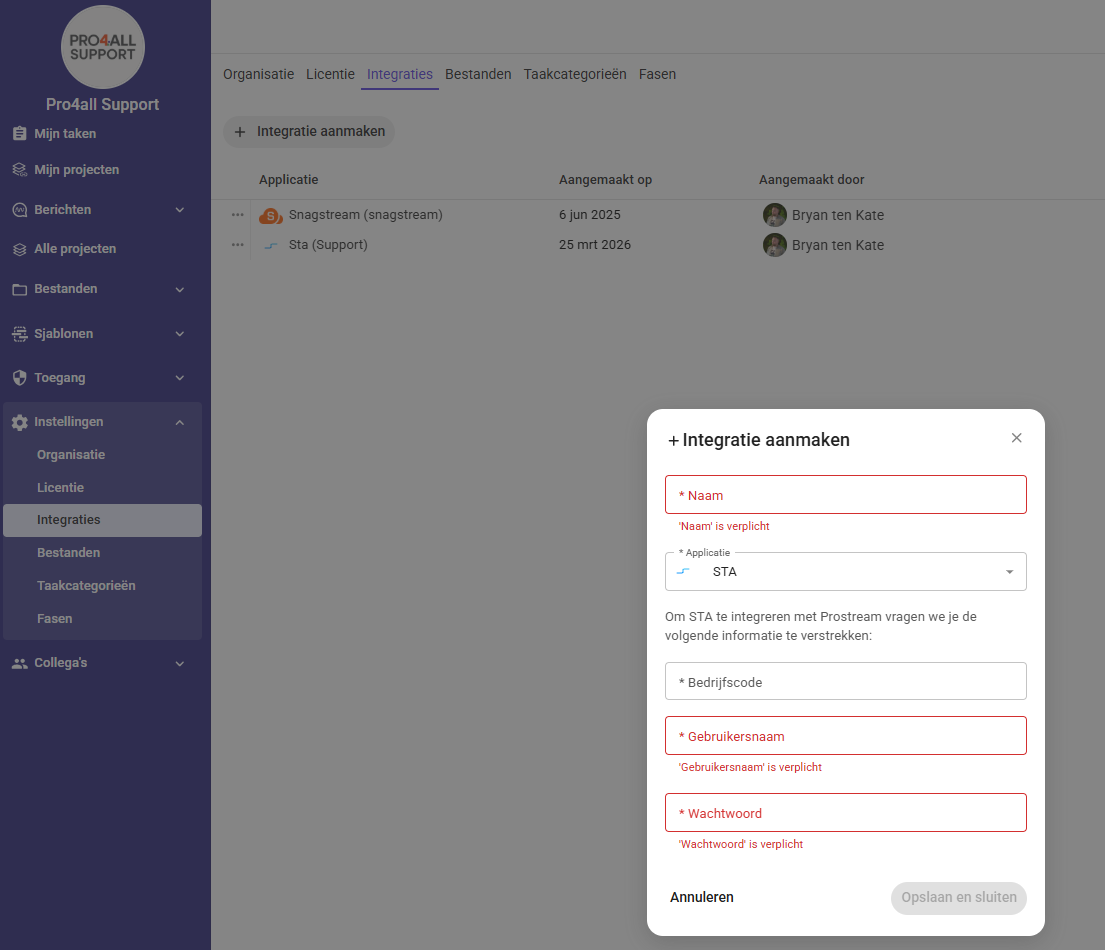
Go to your organization’s Settings.
Click the Integrations tab.
Click Add Integration.
Enter a name and select the STA Software application.
Enter the STA organization code and your STA login credentials.
Click Save and Close.
2. Link a project to STA
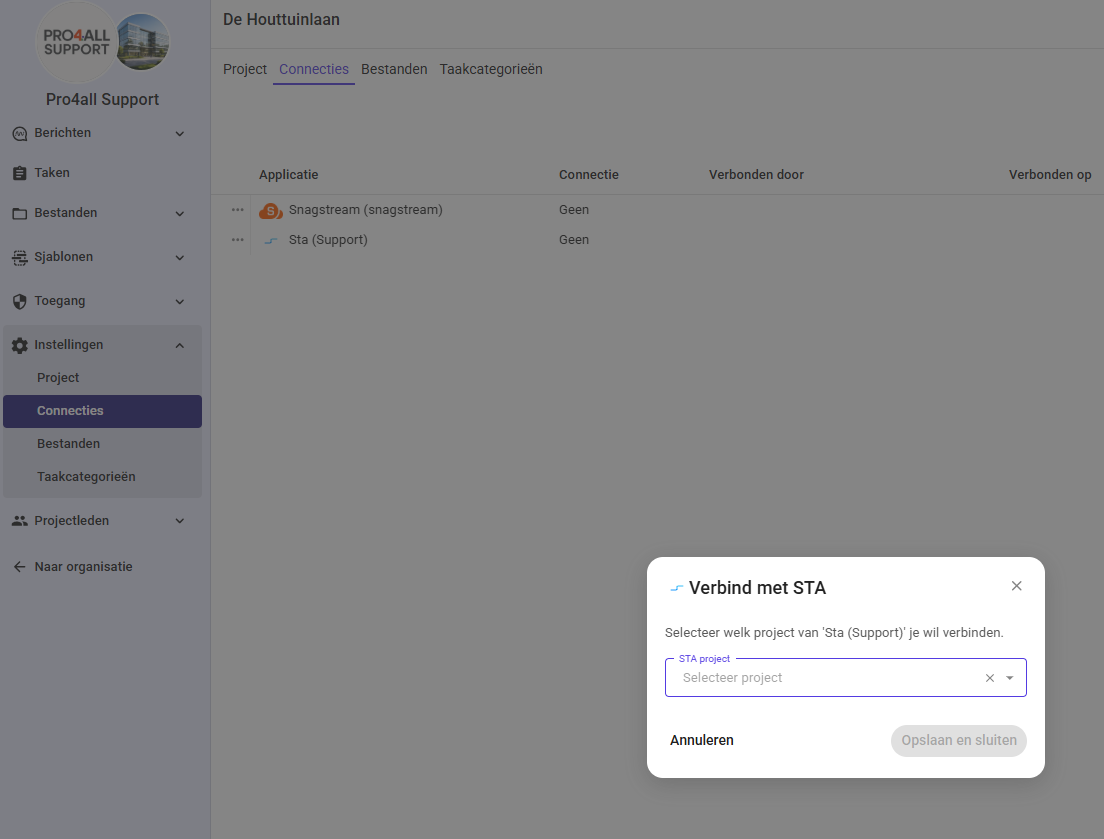
Go to the relevant project.
Go to Settings and click the Connections tab.
Click the three dots next to the integration.
Click Edit.
Add the STA project where the files should be sent.
Click Save.
3. Share a file with STA
Select the file.
Click Share.
Select "Share with STA."
For each file, select whether you want to share it as a file, drawing, or model.
Click Save.
Add metadata in STA via "Configure" in STA or "View Files" in STA.
The default file types are:
.ifc – model
.jpg, .jpeg, .png, .pdf — drawing
Other files — file
In the file overview, you’ll see under the STA icon that the file has been shared with STA.
⚠️ Note: If you upload a new version to Prostream later, you’ll need to share it with STA again.